


 The article has been updated successfully.

Overview: (Options / Auto Rate)
Note: Recommended for Advanced Holdem Manager Users Only
Editing a Rule
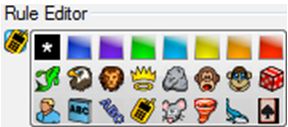
Here we're going to edit the Calling Station Rule that's signified by a cell phone image. If you wanted to change the cell phone image to a different image, simply click the cell phone image and you'll be able to select from the images on the right.
- If you play 6-MAX, HU or Full Ring, make sure those options are selected correctly at the top of the Autorate window in the Players, Games and Style dropdown boxes.
- Select Rule 4 - It should now enter the Rule Editor portion of the Autorate window and look like the following.
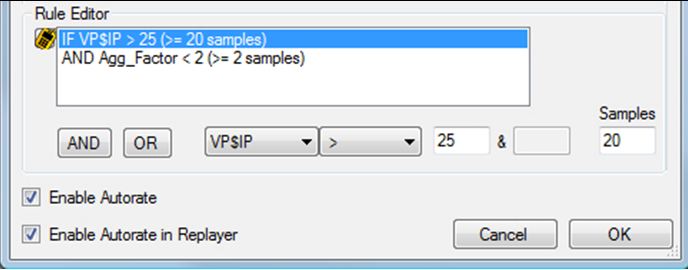
- Right now the VP$IP rule is selected and you can see that it's mathematical parameters are also below the rule. Select the second rule here which is Agg_Factor.
- Right now the Agg_Factor says - If Agg_Factor is less than 2 with greater than or equal to 2 samples, include this in Autorate.
- Change the 2 in the Agg_Factor box to 2.5 - Now for this rule to be active the Agg_Factor must be lower than 2.5 for it to be included in the Autorate part of your HUD.
Adding a Rule(s)
You can add single rules or multiple rules to classify your opponents. In the following example we add 2 rules using the "AND" link.
We're going to add a New Rule with a VP$IP of more than 60% over 20 samples and a 3-bet of more than 9% over 10 samples.
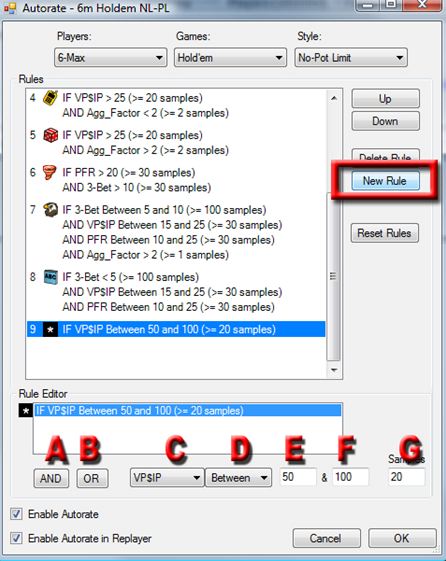
- Click New Rule
- Select C and make sure the VP$IP is selected
- Select D and change it to a greater than sign ">"
- Enter 60 in Box E
- Enter 20 in Box G - Samples
- Click A - And
- Select C and change it to 3-Bet
- Select D and change it to a greater than sign ">".
- Enter 9 in Box E
- Enter 10 in Box G - Samples
Note: This was an "AND" rule. You can also make "OR" rules which don't require both rules to be triggered before Autorating is applied to the opponent.


