


 The article has been updated successfully.

Overview:
There are 2 steps to configuring Holdem Manager to work with Poker Stars:
Once the above steps have been successfully completed, your HUD will be operational.
Setup Poker Stars Hand History Options
Note: Always make sure you have the latest version of Holdem Manager before proceeding! http://www.holdemmanager.com/downloads/HmBetaUpdate.exe
If using Vista or Windows 7, make sure UAC is disabled. UAC stands for User Account Control and can be disabled in Windows Control Panel / Accounts.
- Disable Vista UAC Help
- Disable Windows 7 UAC Help
- Launch Poker Stars.
- Go to Options / Instant Hand History. The Instant Hand History dialog will pop up.
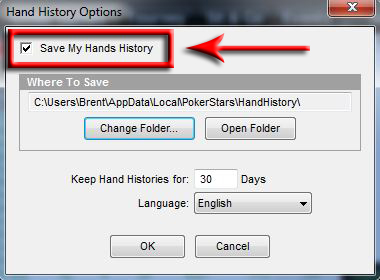
- Make sure the "Save My Hands History" box is checked.
- Note the folder location that Poker Stars is saving your Hand History files. (Write it down, we may need this later.)
- Make sure you are saving "English" Hand Histories.
Windows 7 & Vista Users: By default, Poker Stars saves Hand History files to C:\Users\Username\AppData\Local\PokerStars\Handhistory. These are Hidden Files by default so if you're going to use this folder for your Hand Histories you must tell Windows to unhide Hidden Files files.
Tournament Summary
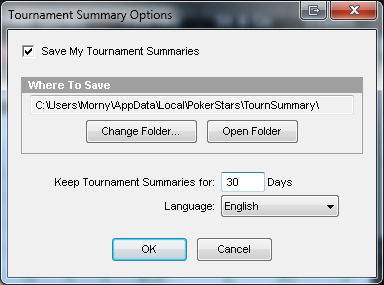
Holdem Manager needs the import summaries before it can correctly calculate winnings for sngs and tournaments. It needs to know the payout structure and also how many players there were. Poker Stars write this in the tournament summary files.
You need to tell stars to save this information on your hard drive and also tell Holdem Manager which folder they are being saved to. To do this go to the stars lobby and click on options > tournament summary options.Tick "Save my Tournament Summaries. Take note of where it is saving these files and make sure the language selected is english and press ok.
Open Holdem Manager and go to Options > Configure Auto Import Folders, then click on auto detect. If Holdem manager does not add the tournSummary folder then click add folder and enter the location you noted when turning on summaries in the Tournament Summary Option section in Poker Stars. Click save and now all tournaments should automatically update with the correct information.
If you want to update older tournaments you need to request the tournmant summaries from stars and then import them using import from file in the Import TAB and then refresh and it should update correctly. You can request the files via email and ask for it in .html format as we dont support the .xls format they send.
Now we're ready to tell Holdem Manager where these Hand Histories are. (Click Here)


