The article has been updated successfully.

Overview:
- I want to use a second computer for poker and share a PostgreSQL database over my local area network.
- I want to use the database on my home computer over the internet when I'm traveling. (Complete Steps 6 and 7 for this.)
Note: This should only be attempted if you're comfortable doing advanced networking tasks with a computer. It's also your own responsibility to backup and protect your own data and computer. This is not something we can assist you with and if it causes your database to become disconnected or damaged you will need to reinstall postgresql and reestore your database backup.
Disclaimer: This FAQ is to help you share your personal database between 2 of your own computers. It is against the rules of most poker sites to share your database with anyone else, or use hands in your database that you did not participate in. We will not provide any technical support for our software so you can break the rules of the poker sites by sharing someone else's database.
Walkthrough:
(Again, only attempt this if your computer networking skills are advanced.)
- Make sure your PostgreSQL password is secure.
To change your password in pgAdmin, do the following:
a) Launch PgAmdin3.exe in the C: Program Files/PostgreSQL/8.3/bin directory.
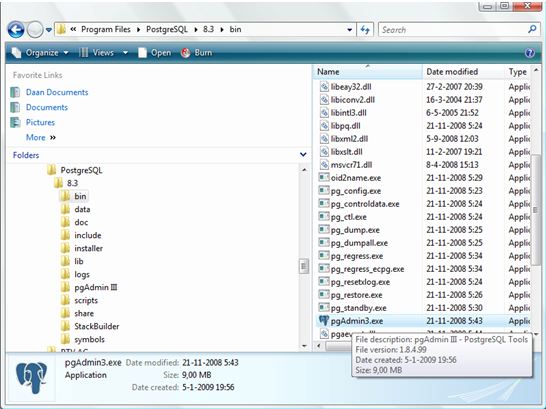
b) Go to loginrole.
c) Right click on the user postgres and choose Properties.
d) Change the password and choose OK.
2. Make sure your computer with the database on it (the database server) has a static IP address. For the sake of this article, we assume it is 192.168.2.2.
3. Allow PostgreSQL to have a login from other machines.
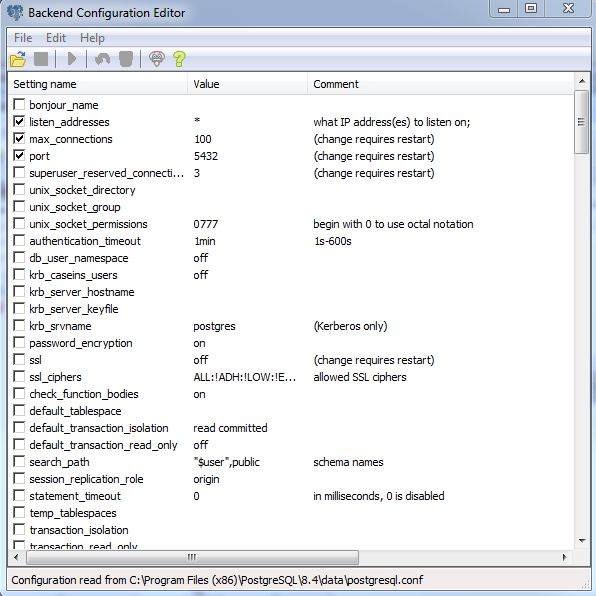
Change the postgressql.conf file:
Go to C:\Program Files\PostgreSQL\8.x\data, move the postgressql.conf file to your Desktop and open it with notepad.
Make sure that by listen_adress a * is filled.
Save it and move the file back to the data folder.
Restart the PostgreSQL service: Control Panel -> Administrative Tools -> Services
Change the pg_hba.conf file likewise. Go to C:\Program Files\PostgreSQL\8.x\data, move the pg_hba.conf file to your Desktop and open it with notepad.
Add a line like:
host all postgres 0.0.0.0/0 md5
if you want to access your database from the internet (See also additional steps for Internet access).
warning: your database is now accessible from everywhere.
Or add a line like:
host all postgres 192.168.2.3/32 md5
(= Ip-address laptop) if you only want to access your database from inside your local network with your laptop/second computer.
Or add a line like:
host all postgres 192.168.2.0/24 md5
(= address of your local network) if your laptop is getting an IP Address from a DHCP server within your network.
notice: your computer is now accessible from every ip in the 192.168.2.x range
Or add a line like:
host all postgres 192.168.2.3/32 trust
if you do not want have anything to do with passwords.
Save it and move the file back to the data folder.
Restart the PostgreSQL service: Control Panel -> Administrative Tools -> Services
4. Make a firewall exception
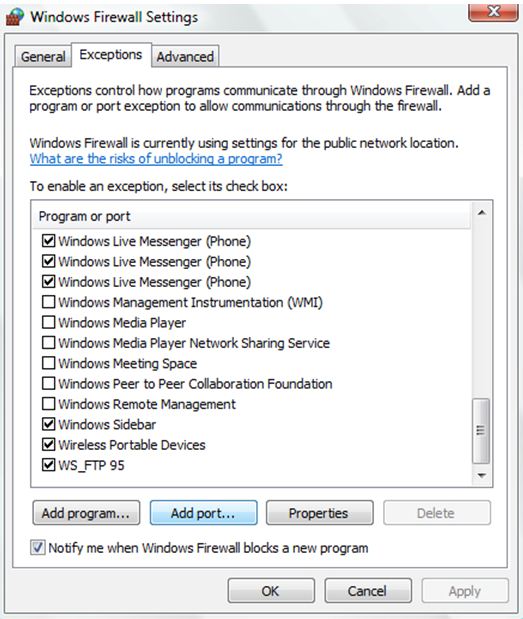
Go to Windows Firewall (if your use another firewall; please look how to set-up an port exception in the manual)
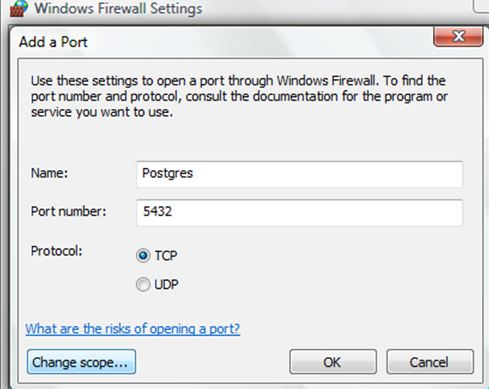
Go to Change setting and Choose Add Port.
Name: Postgres
Port number : 5432
TCP
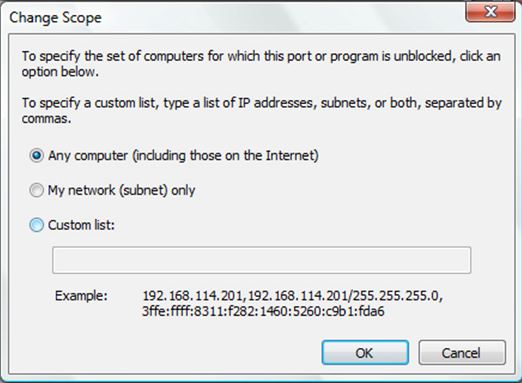
And choose: Change scope
Choose: Any computer if you want to access your database also form the internet
Or choose My Network in you want to access your db only from your local network.
5. Access your HM database from your laptop:
Install HEM on your laptop.
You do NOT need to install Postgres on your laptop.
Open HEM on your laptop.
Fill in the connection to your database server 192.168.2.2
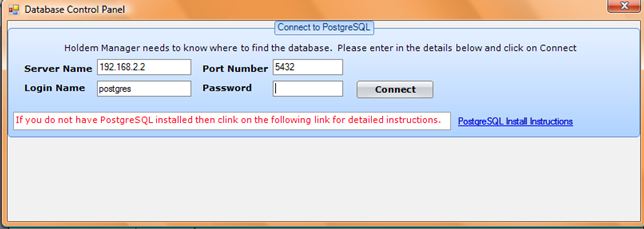
(If already configured HEM; choose database management in Options to change the settings)
Login name is postgres; password is the password you have set-up in step 1.
Connecting should connect you to the database server.
Additional steps to access your database via the internet.
6. - Make a free DynDNS account and host.
Make sure your router/internet modem supports DynDNS. Go to http://www.dyndns.org. Make a free account.
Set-up a host service for example: MyHEMDBserver.dnsalias.org
Set-up your router to update your DynDNS record. (This depends on your router; please look into you manual)
And /or use the free downloadable program DynDNSUpdater to be found: http://www.dyndns.com/support/clients/ for update your DynDNS record.
Make sure your DNS record on DynDNS is updated regularly otherwise your account will expire.
7. Set-up your router to redirect access from your router to your database server.
Make a portforward for TCP port 5432 towards the ip address of your databaseserver:
How you do this depends on your router. Help can be found on http://portforward.com/
8 – Accessing your database form the internet.
Start-up HEM.
Open HEM on your laptop.
Fill in the connection to your database server MyHEMDBserver.dnsalias.org on your laptop.
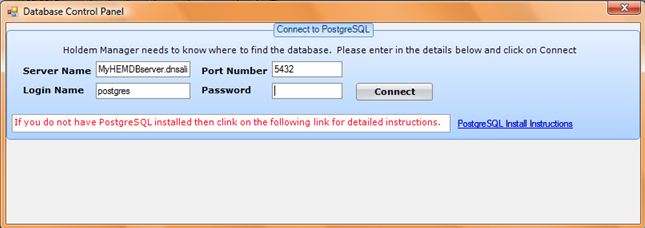
(If already configured HEM; choose database management in Options to change the settings)
Login name is postgres; password is the password you have set-up in step 1.
Connecting should connect you to the database server at home.